Batch data import
In this tutorial, we will explore how to efficiently import large datasets into Weaviate using batch imports. You'll learn the differences between client-side and server-side batching, when to use each approach, and best practices for optimal performance.
Prerequisites
Section titled “Prerequisites”Before starting this tutorial, ensure you have:
- An instance of Weaviate (e.g. on Weaviate Cloud, or locally), version
v1.36or newer for server-side batching - Your preferred Weaviate client library installed
- An API key for your inference API (OpenAI, Cohere, etc.) if using vectorization
- A dataset to import (we'll provide a sample)
Introduction
Section titled “Introduction”Weaviate offers multiple methods for importing your data:
- Object creation: You create the objects in the database one-by-one with individual requests.
- Loading from backup: If you created a backup of an existing collection, you can restore/import it in another Weaviate instance.
- Client-side batch imports: Import objects in larger batches by controlling the batch size and timing manually.
- Server-side batch imports: The server automatically manages the import flow for optimal performance and is recommended for most use cases as it automatically optimizes throughput.
When importing data into Weaviate, always use batch imports instead of importing objects one by one. Batch imports can improve performance by 100x or more by:
- Reducing network overhead through fewer HTTP requests
- Enabling parallel processing
- Optimizing database write operations
Let's walk through importing data using both approaches. We'll create a collection for Jeopardy questions and import sample data.
Step 1: Connect to Weaviate
Section titled “Step 1: Connect to Weaviate”First, connect to your Weaviate instance.
# Connect to Weaviate instance
client = weaviate.connect_to_local(
    headers={
        "X-OpenAI-Api-Key": os.environ["OPENAI_API_KEY"]  # Replace with your API key
    }
)
Step 2: Create a collection
Section titled “Step 2: Create a collection”This is what our data looks like:
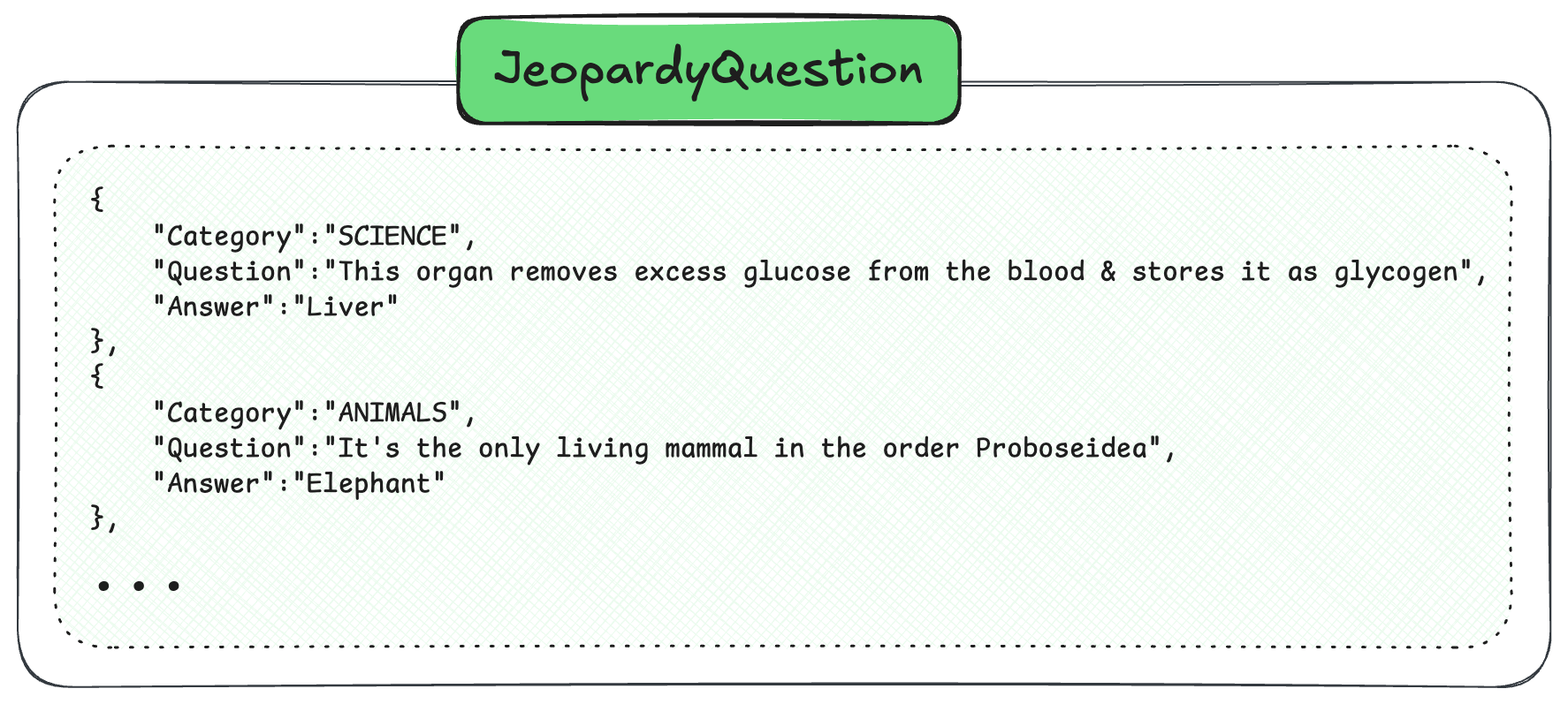
Create a collection to store the Jeopardy questions.
# Create a collection for Jeopardy questions
collection = client.collections.create(
    name="JeopardyQuestion",
    vector_config=wvc.config.Configure.Vectors.text2vec_openai(),
    properties=[
        wvc.config.Property(name="question", data_type=wvc.config.DataType.TEXT),
        wvc.config.Property(name="answer", data_type=wvc.config.DataType.TEXT),
        wvc.config.Property(name="category", data_type=wvc.config.DataType.TEXT),
    ],
)
Step 3: Prepare your data
Section titled “Step 3: Prepare your data”Load the data from the JSON file.
# Download dataset directly from URL
url = "https://raw.githubusercontent.com/weaviate-tutorials/quickstart/main/data/jeopardy_tiny.json"
urllib.request.urlretrieve(url, "jeopardy_tiny.json")

# Load data from JSON file
with open("jeopardy_tiny.json", "r") as f:
    data = json.load(f)

# Prepare data for import
data_rows = []
for item in data:
    data_rows.append(
        {
            "question": item["Question"],
            "answer": item["Answer"],
            "category": item["Category"],
        }
    )

print(f"Loaded {len(data_rows)} questions")
expected_count = len(data_rows)
Step 4: Import the data
Section titled “Step 4: Import the data”Option A: Server-side batching
Section titled “Option A: Server-side batching”Server-side batching automatically manages the import flow using a feedback loop between client and server. The server monitors its workload and tells the client how much data to send next.
- Client opens a persistent connection to the server
- Client sends data in chunks based on server feedback
- Server manages an internal queue and applies backpressure when needed
- Errors are streamed back asynchronously without interrupting the flow
# Server-side batching (automatic mode)
# The server manages the import flow automatically
with collection.batch.stream() as batch:
    # Import data
    for data_row in data_rows:
        batch.add_object(
            properties=data_row,
        )

        # Optional: Stop if too many errors
        if batch.number_errors > 10:
            print("Batch import stopped due to excessive errors.")
            break

# Check for failed objects
failed_objects = collection.batch.failed_objects
if failed_objects:
    print(f"Number of failed imports: {len(failed_objects)}")
    print(f"First failed object: {failed_objects[0]}")
else:
    print("All objects imported successfully!")

# Verify server-side batch import
result = collection.aggregate.over_all(total_count=True)
assert len(failed_objects) == 0, f"Server-side batch had {len(failed_objects)} failures"
assert (
    result.total_count == expected_count
), f"Expected {expected_count} objects, got {result.total_count}"
print(f"✓ Server-side batch: {result.total_count} objects imported successfully")
The benefits of server-side batching are:
- No manual tuning: Server automatically determines optimal batch size
- Automatic backpressure: Prevents server overload during heavy operations
- Better resilience: Handles cluster scaling events gracefully
- Simplified code: Less configuration needed
Option B: Client-side batching
Section titled “Option B: Client-side batching”Client-side batching gives you direct control over batch size and timing. You configure parameters like batch size and manage the import flow manually.
# Client-side batching with manual configuration
# You control batch size and concurrency
with collection.batch.fixed_size(
    batch_size=100,  # Number of objects per batch
    concurrent_requests=2,  # Number of parallel requests
) as batch:
    # Import data
    for data_row in data_rows:
        batch.add_object(
            properties=data_row,
        )

# Check for failed objects
failed_objects = collection.batch.failed_objects
if failed_objects:
    print(f"Number of failed imports: {len(failed_objects)}")
    for failed in failed_objects[:3]:  # Show first 3 failures
        print(f"Failed object: {failed}")

# Verify client-side batch import
result = collection.aggregate.over_all(total_count=True)
assert len(failed_objects) == 0, f"Client-side batch had {len(failed_objects)} failures"
assert (
    result.total_count == expected_count
), f"Expected {expected_count} objects, got {result.total_count}"
print(f"✓ Client-side batch: {result.total_count} objects imported successfully")
Use the following tips for configuring client-side batching:
- Default: Start with 100 objects per batch
- Large objects: Reduce to 20-50 for objects with long texts or custom vectors
- Small objects: Increase to 200-500 for simple objects
- Monitor CPU and memory usage to find optimal size
Error handling
Section titled “Error handling”Proper error handling is crucial for batch imports. A 200 HTTP status only means the request was received - individual objects may still fail.
# Comprehensive error handling during import
# Clean and recreate for demo
client.collections.delete("JeopardyQuestion")
collection = client.collections.create(
    name="JeopardyQuestion",
    vector_config=wvc.config.Configure.Vectors.text2vec_openai(),
    properties=[
        wvc.config.Property(name="question", data_type=wvc.config.DataType.TEXT),
        wvc.config.Property(name="answer", data_type=wvc.config.DataType.TEXT),
        wvc.config.Property(name="category", data_type=wvc.config.DataType.TEXT),
    ],
)

import_errors = []

with collection.batch.fixed_size(batch_size=100) as batch:
    for idx, data_row in enumerate(data_rows):
        try:
            batch.add_object(properties=data_row)
        except Exception as e:
            import_errors.append({"index": idx, "data": data_row, "error": str(e)})
            continue

        # Check batch errors periodically
        if idx % 100 == 0 and idx > 0:
            if batch.number_errors > 0:
                print(f"Errors at index {idx}: {batch.number_errors}")
                # Optionally retrieve and log failed objects
                for failed_obj in collection.batch.failed_objects[-10:]:
                    print(f"Failed: {failed_obj.message}")

# Final error report
if import_errors:
    print(f"\nTotal import errors: {len(import_errors)}")
    print("Sample errors:")
    for error in import_errors[:3]:
        print(f"  Index {error['index']}: {error['error']}")
Verify import
Section titled “Verify import”After importing, verify the data was successfully added.
# Verify the import was successful
result = collection.aggregate.over_all(total_count=True)
print(f"\nTotal objects in collection: {result.total_count}")

# Query a few objects to verify
results = collection.query.fetch_objects(limit=3)
print("\nSample imported objects:")
for obj in results.objects:
    print(f"- Question: {obj.properties['question'][:50]}...")
    print(f"  Answer: {obj.properties['answer']}")
    print(f"  Category: {obj.properties['category']}\n")
Importing with custom vectors
Section titled “Importing with custom vectors”If you have pre-computed vectors, you can include them in the import.
# Import with custom vectors (if you have pre-computed embeddings)
import numpy as np

# Example: Create a collection that accepts custom vectors
client.collections.delete("JeopardyCustomVectors")
collection_custom = client.collections.create(
    name="JeopardyCustomVectors",
    vector_config=wvc.config.Configure.Vectors.self_provided(),
    properties=[
        wvc.config.Property(name="question", data_type=wvc.config.DataType.TEXT),
        wvc.config.Property(name="answer", data_type=wvc.config.DataType.TEXT),
        wvc.config.Property(name="category", data_type=wvc.config.DataType.TEXT),
    ],
)

# Import objects with custom vectors
custom_import_count = 5  # Import first 5 for demo
with collection_custom.batch.fixed_size(batch_size=100) as batch:
    for data_row in data_rows[:custom_import_count]:
        # Generate a random vector for demonstration
        # In practice, this would be your pre-computed embedding
        custom_vector = np.random.rand(1536).tolist()

        batch.add_object(
            properties={
                "question": data_row["question"],
                "answer": data_row["answer"],
                "category": data_row["category"],
            },
            vector=custom_vector,
        )

# Verify custom vectors import
failed_custom = collection_custom.batch.failed_objects
result_custom = collection_custom.aggregate.over_all(total_count=True)
assert (
    len(failed_custom) == 0
), f"Custom vectors batch had {len(failed_custom)} failures"
assert (
    result_custom.total_count == custom_import_count
), f"Expected {custom_import_count} objects, got {result_custom.total_count}"
print(f"✓ Custom vectors: {result_custom.total_count} objects imported successfully!")
Best practices
Section titled “Best practices”Performance optimization
Section titled “Performance optimization”- Use multiple shards: Even on a single node, sharding improves import speed
- Monitor CPU usage: Use
htopto ensure CPUs are fully utilized - Parallelize imports: Run multiple import processes if CPUs aren't maxed out
- Set resource limits: Configure
LIMIT_RESOURCES=Trueto avoid out of memory issues
Choosing batch parameters
Section titled “Choosing batch parameters”For client-side batching:
- Start with
batch_size=100 - Increase
concurrent_requeststo 2-4 for better throughput - Adjust based on object size and available resources
For server-side batching:
- No configuration needed - the server handles optimization
- Focus on error handling and monitoring
Large dataset strategies
Section titled “Large dataset strategies”When importing millions of objects:
- Split your dataset into manageable chunks
- Use checkpointing to resume failed imports
- Monitor progress with regular status updates
- Implement retry logic for transient failures
Example of chunked import with progress tracking:
# Import large datasets in chunks with progress tracking
def import_large_dataset(collection, data_rows, chunk_size=1000):
    """
    Import data in chunks with progress tracking and checkpointing
    """
    total_objects = len(data_rows)
    imported_count = 0
    failed_count = 0

    # Process in chunks
    for chunk_start in range(0, total_objects, chunk_size):
        chunk_end = min(chunk_start + chunk_size, total_objects)
        chunk = data_rows[chunk_start:chunk_end]

        print(f"\nImporting chunk {chunk_start}-{chunk_end} of {total_objects}")

        with collection.batch.fixed_size(
            batch_size=100,
            concurrent_requests=2,
        ) as batch:
            for data_row in chunk:
                batch.add_object(properties=data_row)

        # Track progress
        chunk_failed = len(collection.batch.failed_objects)
        chunk_succeeded = len(chunk) - chunk_failed
        imported_count += chunk_succeeded
        failed_count += chunk_failed

        # Progress report
        progress = (chunk_end / total_objects) * 100
        print(f"Progress: {progress:.1f}% ({imported_count}/{total_objects} imported)")

        if chunk_failed > 0:
            print(f"  Warning: {chunk_failed} objects failed in this chunk")

        # Optional: Save checkpoint for resume capability
        checkpoint = {
            "last_processed_index": chunk_end,
            "imported_count": imported_count,
            "failed_count": failed_count,
        }
        with open("import_checkpoint.json", "w") as f:
            json.dump(checkpoint, f)

    # Final report
    print(f"\n=== Import Complete ===")
    print(f"Total imported: {imported_count}/{total_objects}")
    print(f"Total failed: {failed_count}")
    print(f"Success rate: {(imported_count/total_objects)*100:.1f}%")

    return imported_count, failed_count


# Test chunked import with small chunks for demo
client.collections.delete("JeopardyQuestion")
collection = client.collections.create(
    name="JeopardyQuestion",
    vector_config=wvc.config.Configure.Vectors.text2vec_openai(),
    properties=[
        wvc.config.Property(name="question", data_type=wvc.config.DataType.TEXT),
        wvc.config.Property(name="answer", data_type=wvc.config.DataType.TEXT),
        wvc.config.Property(name="category", data_type=wvc.config.DataType.TEXT),
    ],
)

# Run chunked import with small chunks to demonstrate the feature
imported, failed = import_large_dataset(collection, data_rows, chunk_size=3)

# Verify chunked import
result_chunked = collection.aggregate.over_all(total_count=True)
assert failed == 0, f"Chunked import had {failed} failures"
assert (
    result_chunked.total_count == expected_count
), f"Expected {expected_count} objects, got {result_chunked.total_count}"
print(f"✓ Chunked import: {result_chunked.total_count} objects imported successfully")
Summary
Section titled “Summary”This tutorial covered efficient bulk data import in Weaviate:
- Always use batch imports for better performance.
- Server-side batching automatically optimizes throughput with no manual tuning.
- Client-side batching provides direct control when needed.
- Error handling is critical - check for object-level failures even with HTTP 200 responses.
- Monitor and optimize based on your data and infrastructure.
Further resources
Section titled “Further resources”Questions and feedback
Section titled “Questions and feedback”Have a question or feedback? Here's how to reach us.