Multimodal Embeddings
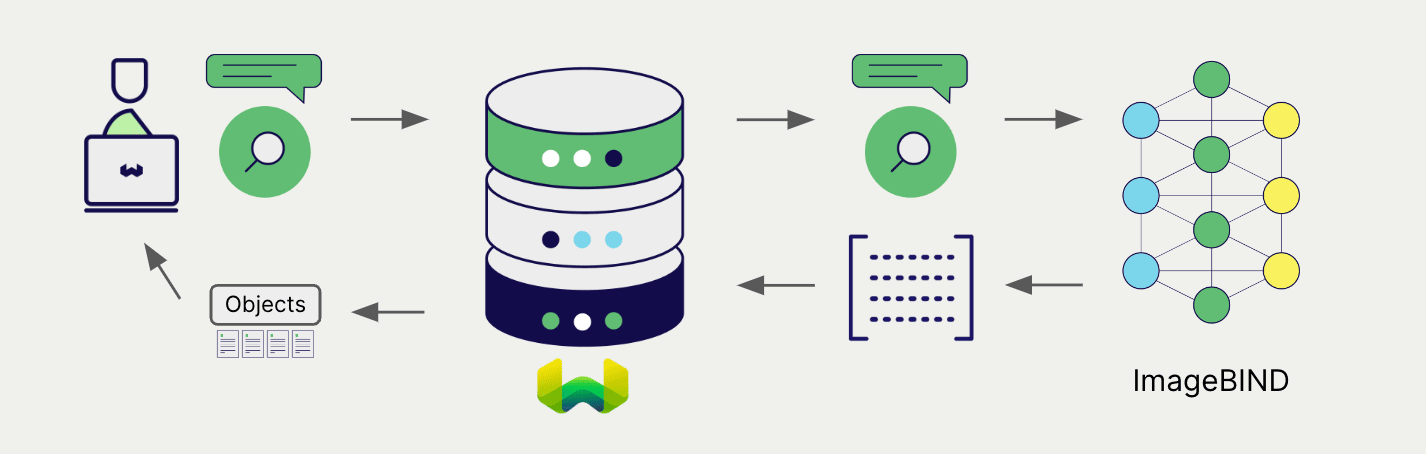
Weaviate's integration with the Meta ImageBind library allows you to access its capabilities directly from Weaviate. The ImageBind model supports multiple modalities (text, image, audio, video, thermal, IMU and depth).
Configure a Weaviate vector index to use the ImageBind integration, and configure the Weaviate instance with a model image, and Weaviate will generate embeddings for various operations using the specified model in the ImageBind inference container. This feature is called the vectorizer.
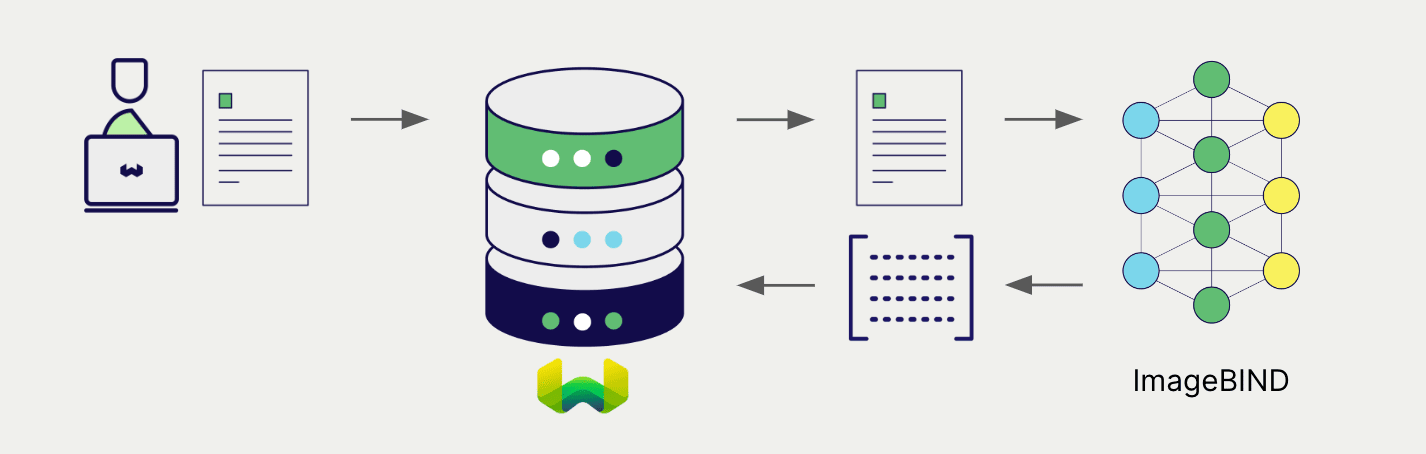
At import time, Weaviate generates multimodal object embeddings and saves them into the index. For vector and hybrid search operations, Weaviate converts queries of one or more modalities into embeddings. Multimodal search operations are also supported.
Requirements
Section titled “Requirements”Weaviate configuration
Section titled “Weaviate configuration”Your Weaviate instance must be configured with the ImageBind multimodal vectorizer integration (multi2vec-bind) module.
For Weaviate Cloud (WCD) users
This integration is not available for Weaviate Cloud (WCD) instances, as it requires spinning up a container with the ImageBind model.
Enable the integration module
Section titled “Enable the integration module”- Check the cluster metadata to verify if the module is enabled.
- Follow the how-to configure modules guide to enable the module in Weaviate.
Configure the integration
Section titled “Configure the integration”To use this integration, you must configure the container image of the ImageBind model, and the inference endpoint of the containerized model.
The following example shows how to configure the ImageBind integration in Weaviate:
Docker Option 1: Use a pre-configured docker-compose.yml file
Follow the instructions on the Weaviate Docker installation configurator to download a pre-configured docker-compose.yml file with a selected model
Docker Option 2: Add the configuration manually
Alternatively, add the configuration to the docker-compose.yml file manually as in the example below.
services:
  weaviate:
    # Other Weaviate configuration
    environment:
      BIND_INFERENCE_API: http://multi2vec-bind:8080  # Set the inference API endpoint
  multi2vec-bind:  # Set the name of the inference container
    mem_limit: 12g
    image: cr.weaviate.io/semitechnologies/multi2vec-bind:imagebind
    environment:
ENABLE_CUDA: 0 # Set to 1 to enableBIND_INFERENCE_APIenvironment variable sets the inference API endpointmulti2vec-bindis the name of the inference containerimageis the container imageENABLE_CUDAenvironment variable enables GPU usage
Configure the ImageBind integration in Weaviate by adding or updating the multi2vec-bind module in the modules section of the Weaviate Helm chart values file. For example, modify the values.yaml file as follows:
modules:

  multi2vec-bind:

    enabled: true
    tag: imagebind
    repo: semitechnologies/multi2vec-bind
    registry: cr.weaviate.io
    envconfig:
      enable_cuda: true
See the Weaviate Helm chart for an example of the values.yaml file including more configuration options.
Credentials
Section titled “Credentials”As this integration runs a local container with the ImageBind model, no additional credentials (e.g. API key) are required. Connect to Weaviate as usual, such as in the examples below.
Configure the vectorizer
Section titled “Configure the vectorizer”Configure a Weaviate index as follows to use an ImageBind embedding model:
from weaviate.classes.config import Configure, DataType, Multi2VecField, Propertyclient.collections.create( "DemoCollection", properties=[ Property(name="title", data_type=DataType.TEXT), Property(name="poster", data_type=DataType.BLOB), ], vector_config=[ Configure.Vectors.multi2vec_bind( name="title_vector", # Define the fields to be used for the vectorization - using image_fields, text_fields, video_fields image_fields=[ Multi2VecField(name="poster", weight=0.9) ], text_fields=[ Multi2VecField(name="title", weight=0.1) ] ) ], # Additional parameters not shown)await client.collections.create({ name: 'DemoCollection', properties: [ { name: 'title', dataType: 'text' as const, }, { name: 'poster', dataType: 'blob' as const, }, ], vectorizers: [ weaviate.configure.vectors.multi2VecClip({ name: 'title_vector', imageFields: [ { name: 'poster', weight: 0.9, }, ], textFields: [ { name: 'title', weight: 0.1, }, ], }), ], // Additional parameters not shown});There is only one ImageBind model available.
Vectorization behavior
Weaviate follows the collection configuration and a set of predetermined rules to vectorize objects.
Unless specified otherwise in the collection definition, the default behavior is to:
- Only vectorize properties that use the
textortext[]data type (unless skipped) - Sort properties in alphabetical (a-z) order before concatenating values
- If
vectorizePropertyNameistrue(falseby default) prepend the property name to each property value - Join the (prepended) property values with spaces
- Prepend the class name (unless
vectorizeClassNameisfalse) - Convert the produced string to lowercase
Vectorizer parameters
Section titled “Vectorizer parameters”The ImageBind vectorizer supports multiple modalities (text, image, audio, video, thermal, IMU and depth). One or more of these can be specified in the vectorizer configuration as shown.
from weaviate.classes.config import Configure, DataType, Multi2VecField, Propertyclient.collections.create( "DemoCollection", properties=[ Property(name="title", data_type=DataType.TEXT), Property(name="poster", data_type=DataType.BLOB), Property(name="sound", data_type=DataType.BLOB), Property(name="video", data_type=DataType.BLOB), ], vector_config=[ Configure.Vectors.multi2vec_bind( name="title_vector", # Define the fields to be used for the vectorization image_fields=[ Multi2VecField(name="poster", weight=0.7) ], text_fields=[ Multi2VecField(name="title", weight=0.1) ], audio_fields=[ Multi2VecField(name="sound", weight=0.1) ], video_fields=[ Multi2VecField(name="video", weight=0.1) ], # depth, IMU and thermal fields are also available ) ], # Additional parameters not shown)await client.collections.create({ name: 'DemoCollection', properties: [ { name: 'title', dataType: 'text' as const, }, { name: 'poster', dataType: 'blob' as const, }, { name: 'sound', dataType: 'blob' as const, }, { name: 'video', dataType: 'blob' as const, }, ], vectorizers: [ weaviate.configure.vectors.multi2VecBind({ name: 'title_vector', imageFields: [ { name: 'poster', weight: 0.7, }, ], textFields: [ { name: 'title', weight: 0.1, }, ], audioFields: [ { name: 'sound', weight: 0.1, }, ], videoFields: [ { name: 'video', weight: 0.1, }, ], // depth, IMU and thermal fields are also available }), ],});Data import
Section titled “Data import”After configuring the vectorizer, import data into Weaviate. Weaviate generates embeddings for the objects using the specified model.
collection = client.collections.use("DemoCollection")with collection.batch.fixed_size(batch_size=200) as batch: for src_obj in source_objects: poster_b64 = url_to_base64(src_obj["poster_path"]) weaviate_obj = { "title": src_obj["title"], "poster": poster_b64 # Add the image in base64 encoding } # The model provider integration will automatically vectorize the object batch.add_object( properties=weaviate_obj, # vector=vector # Optionally provide a pre-obtained vector )const collectionName = 'DemoCollection'
const myCollection = client.collections.use(collectionName)Searches
Section titled “Searches”Once the vectorizer is configured, Weaviate will perform vector and hybrid search operations using the specified ImageBind model.
Vector (near text) search
Section titled “Vector (near text) search”When you perform a vector search, Weaviate converts the text query into an embedding using the specified model and returns the most similar objects from the database.
The query below returns the n most similar objects from the database, set by limit.
collection = client.collections.use("DemoCollection")response = collection.query.near_text( query="A holiday film", # The model provider integration will automatically vectorize the query limit=2)for obj in response.objects: print(obj.properties["title"])const collectionName = 'DemoCollection'
const myCollection = client.collections.use(collectionName)Hybrid search
Section titled “Hybrid search”When you perform a hybrid search, Weaviate converts the text query into an embedding using the specified model and returns the best scoring objects from the database.
The query below returns the n best scoring objects from the database, set by limit.
collection = client.collections.use("DemoCollection")response = collection.query.hybrid( query="A holiday film", # The model provider integration will automatically vectorize the query limit=2)for obj in response.objects: print(obj.properties["title"])const collectionName = 'DemoCollection'
const myCollection = client.collections.use(collectionName)Vector (near media) search
Section titled “Vector (near media) search”When you perform a media search such as a near image search, Weaviate converts the query into an embedding using the specified model and returns the most similar objects from the database.
To perform a near media search such as near image search, convert the media query into a base64 string and pass it to the search query.
The query below returns the n most similar objects to the input image from the database, set by limit.
def url_to_base64(url):
    import requests
    import base64

    image_response = requests.get(url)
    content = image_response.content
return base64.b64encode(content).decode("utf-8")const base64String = 'SOME_BASE_64_REPRESENTATION';
result = await myCollection.query.nearImage(
base64String, // The model provider integration will automatically vectorize the query
{
limit: 2,
}
)
console.log(JSON.stringify(result.objects, null, 2));You can perform similar searches for other media types such as audio, video, thermal, IMU, and depth, by using an equivalent search query for the respective media type.
References
Section titled “References”Available models
Section titled “Available models”There is only one ImageBind model available.
Further resources
Section titled “Further resources”Code examples
Section titled “Code examples”Once the integrations are configured at the collection, the data management and search operations in Weaviate work identically to any other collection. See the following model-agnostic examples:
- The How-to: Manage collections and How-to: Manage objects guides show how to perform data operations (i.e. create, read, update, delete collections and objects within them).
- The How-to: Query & Search guides show how to perform search operations (i.e. vector, keyword, hybrid) as well as retrieval augmented generation.
Model licenses
Section titled “Model licenses”Review the license for the model on the ImageBind page.
It is your responsibility to evaluate whether the terms of its license(s), if any, are appropriate for your intended use.
External resources
Section titled “External resources”Questions and feedback
Section titled “Questions and feedback”Have a question or feedback? Here's how to reach us.